CyberFlow
Palette Manager
The Palette Manager can be used to install new nodes into the palette. It can be accessed under the Palette tab of the User Settings dialog.
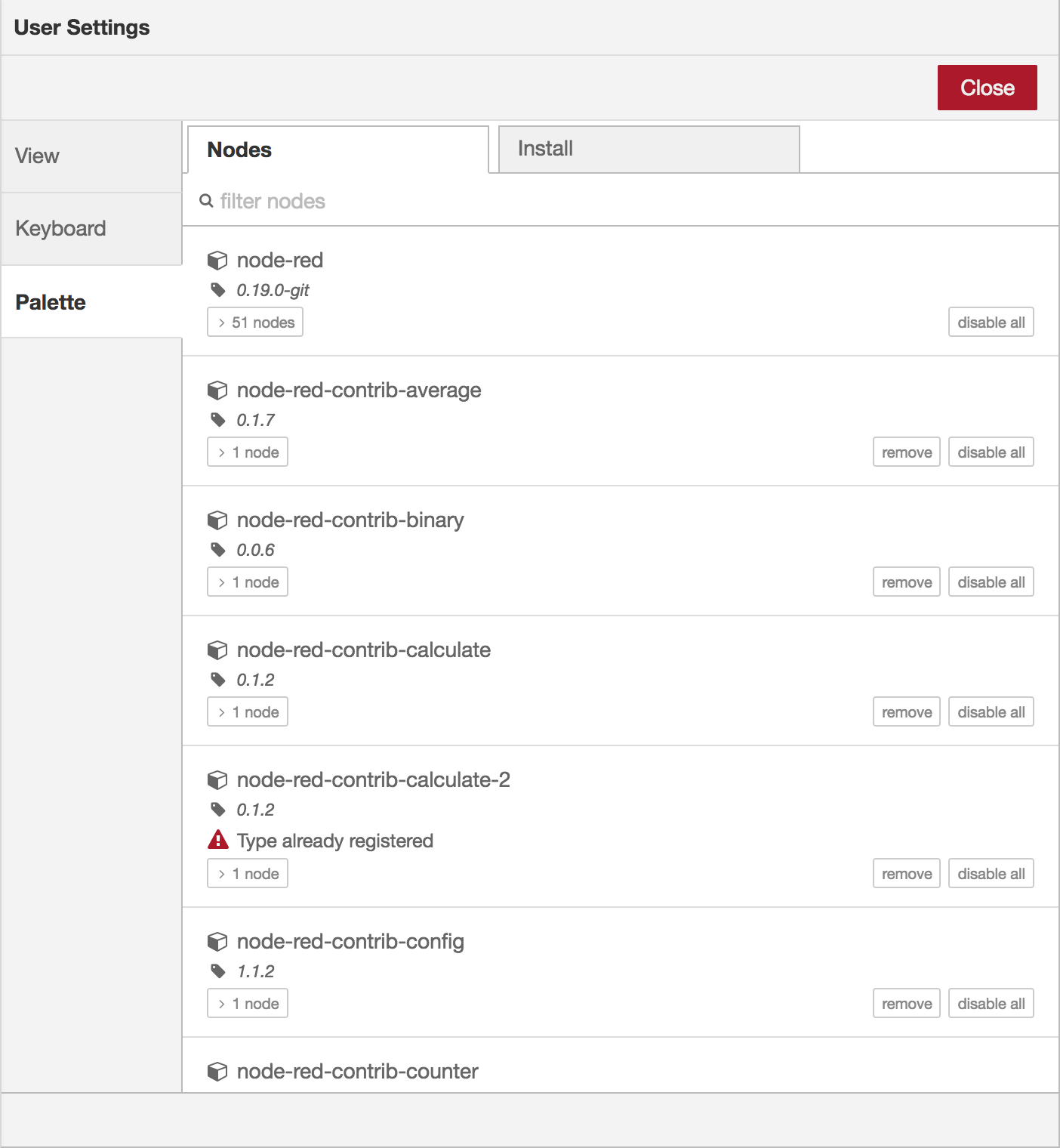
Palette Manager - Nodes tab
| Reference | |
|---|---|
| Key shortcut | Ctrl/⌘-Shift-p |
| Menu option | Manage palette |
| Action | core:manage-palette |
The Palette Manager has two tabs:
- Nodes lists the modules that are currently installed in the runtime
- Install lists the available modules that can be installed
Managing nodes
Each entry in the Nodes list shows the name and version of the module along with a list of the individual node types the module provides.
Options are provided to remove, disable or upgrade each module. If a node is currently in use within the flow, it cannot be removed or disabled.
Installing nodes
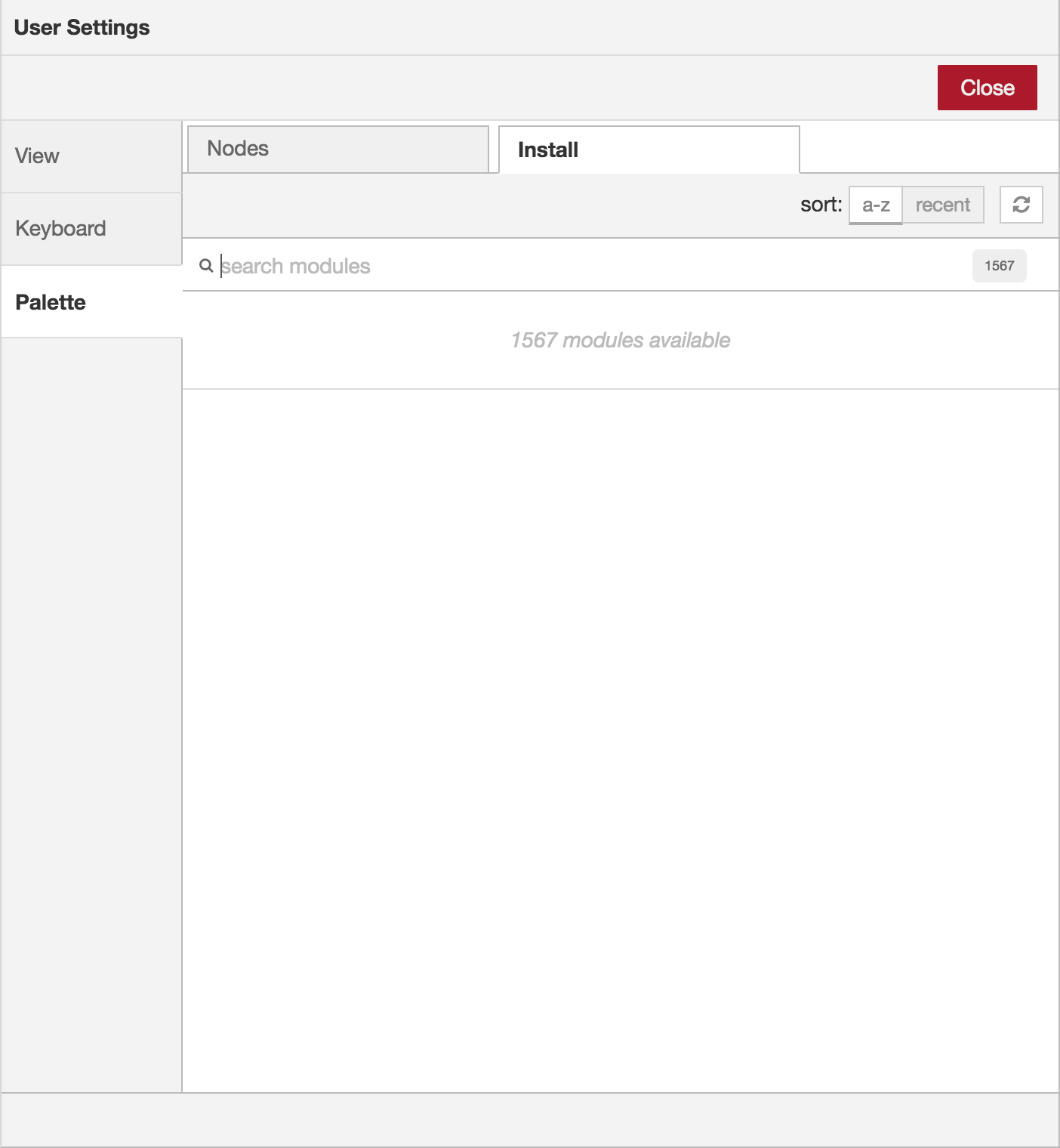
Palette Manager - Install tab
The Install tab can be used to search for available modules and install them.
To search for a module, enter its name in the search bar. The search results show the details of the modules, including when it was last updated and a link to its documentation. It can be installed by clicking the ‘install’ button.
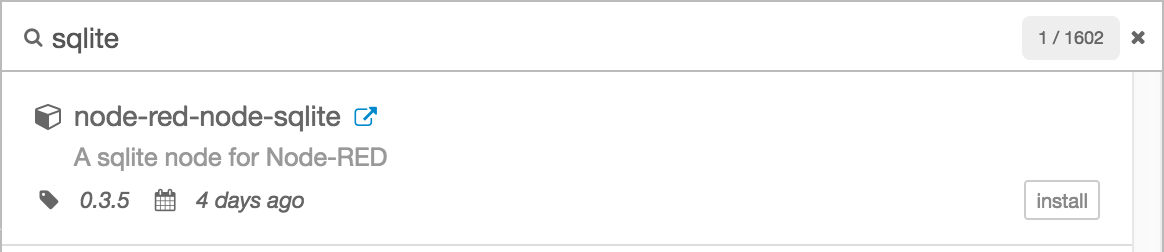
Palette Manager - Install module details
Video walkthrough placeholder
Add an embedded walkthrough for this section by inserting an <iframe> or <video> element and applying the is-visible class to this container.