CyberFlow
Workspace
The main workspace is where flows are developed by dragging nodes from the palette and wiring them together.
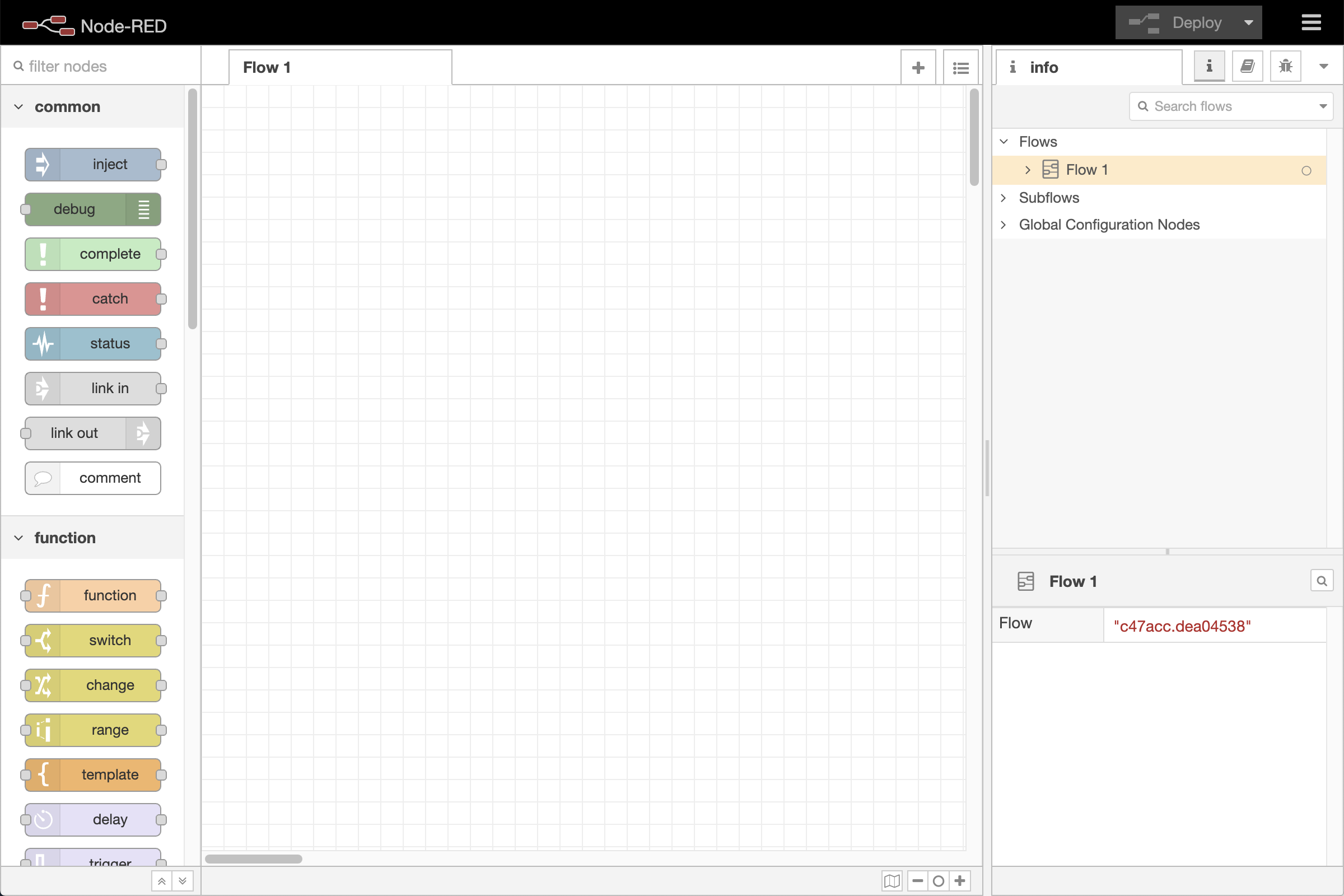
Editor window
The workspace has a row of tabs along the top; one for each flow and any subflows that have been opened.
View tools
| Reference | |
|---|---|
| Action | core:zoom-in |
| Key shortcut | Ctrl/⌘-= |
| Reference | |
|---|---|
| Action | core:zoom-reset |
| Key shortcut | Ctrl/⌘-0 |
| Reference | |
|---|---|
| Action | core:zoom-out |
| Key shortcut | Ctrl/⌘-- |
The footer of the workspace contains buttons to zoom in and out as well as to reset to the default zoom level.
It also contains a toggle button for the view navigator.
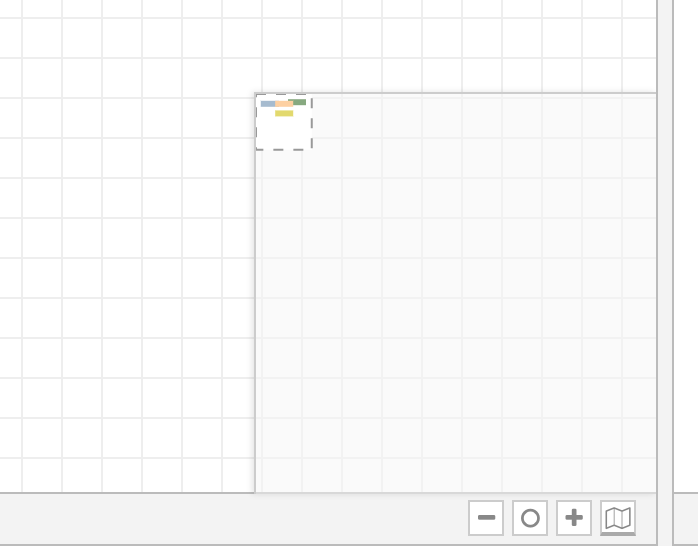
Workspace footer with view navigator active
| Reference | |
|---|---|
| Action | core:toggle-navigator |
| Key shortcut | none |
The view navigator provides a scaled down view of the entire workspace, highlighting the area currently visible. That area can be dragged around the navigator to quickly jump to other parts of the workspace. It is also useful for finding nodes that have been ‘lost’ to the further edges of the workspace.
Customising the view
| Reference | |
|---|---|
| Action | core:show-user-settings |
| Key shortcut | Ctrl/⌘-, |
The workspace view can be customised via the ‘View’ tab of the User Settings dialog.
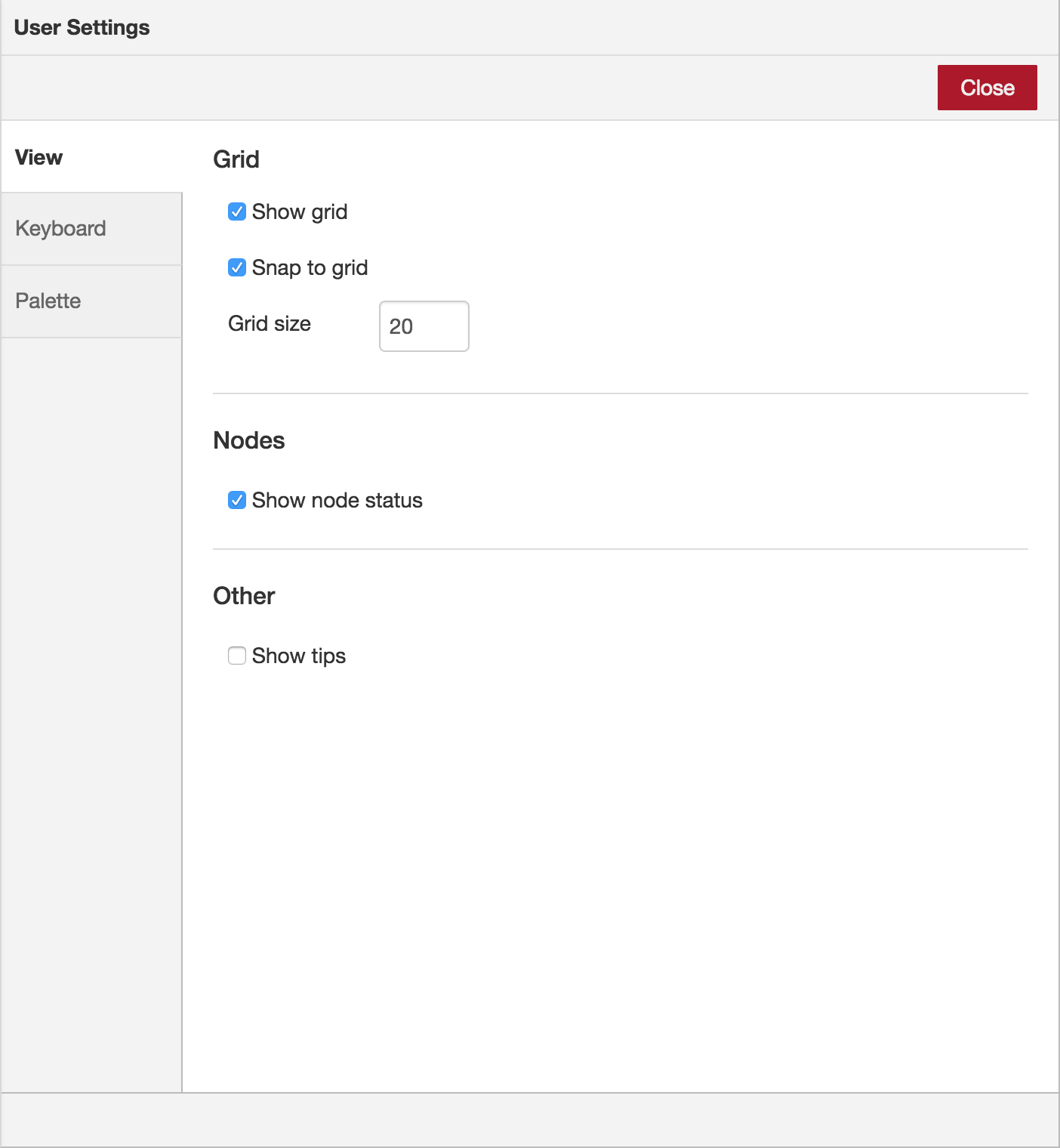
User Settings View tab
Video walkthrough placeholder
Add an embedded walkthrough for this section by inserting an <iframe> or <video> element and applying the is-visible class to this container.