CyberFlow
Flows
A flow is represented as a tab within the editor workspace and is the main way to organise nodes.

Flow tabs
Each flow can have a name, and description that is displayed in the Information sidebar.
All of the nodes in a flow can access the same flow-scoped context.
Adding a flow
To add a new flow, either click the button in the top bar, or double-click on free space in the tab bar.
| Reference | |
|---|---|
| Key shortcut | none |
| Menu option | Flows -> Add |
| Action | core:add-flow |
Reordering flows
Flows can be reordered in the workspace by dragging their tabs around in the tab bar.
Editing flow properties
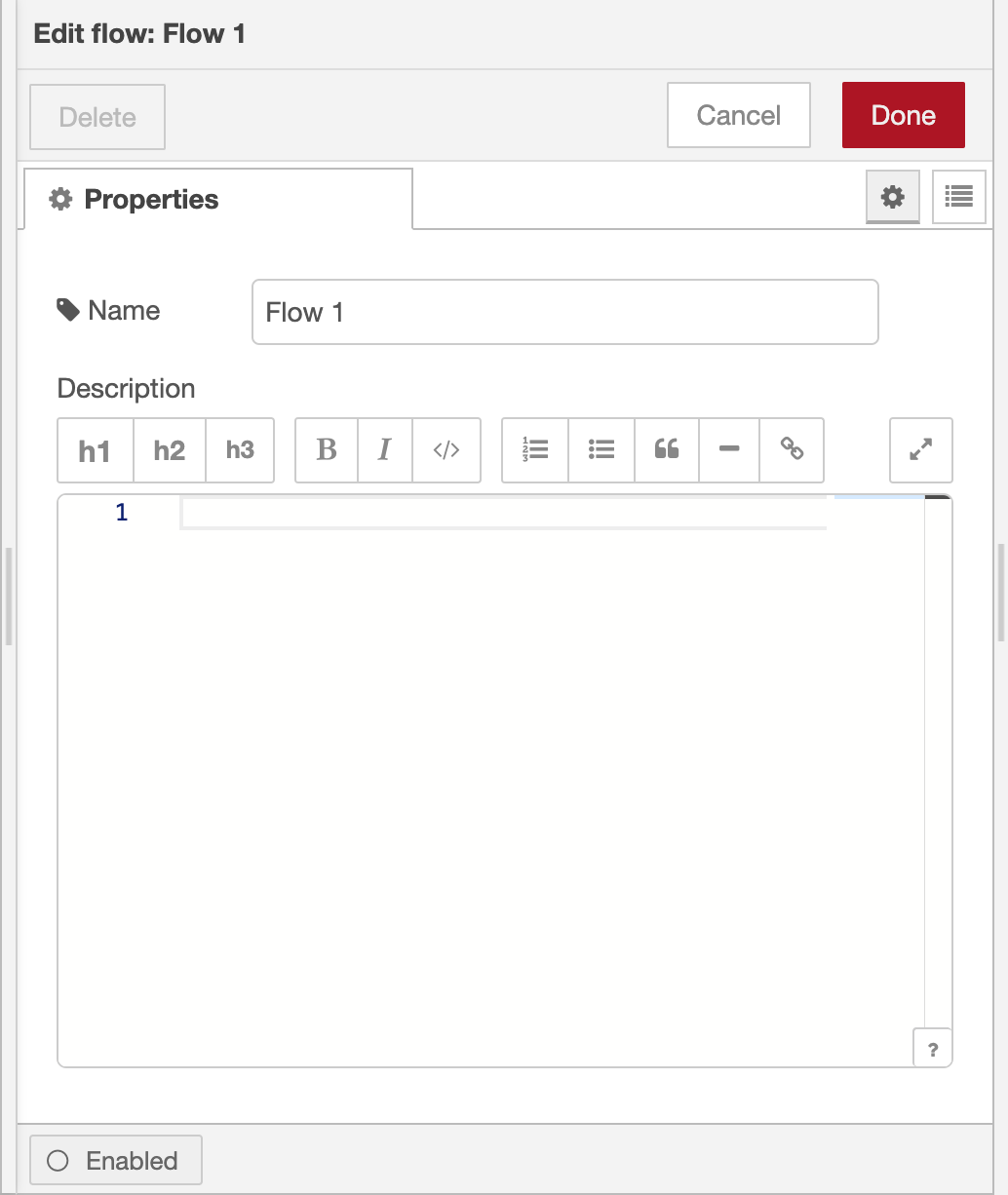
Flow properties editor
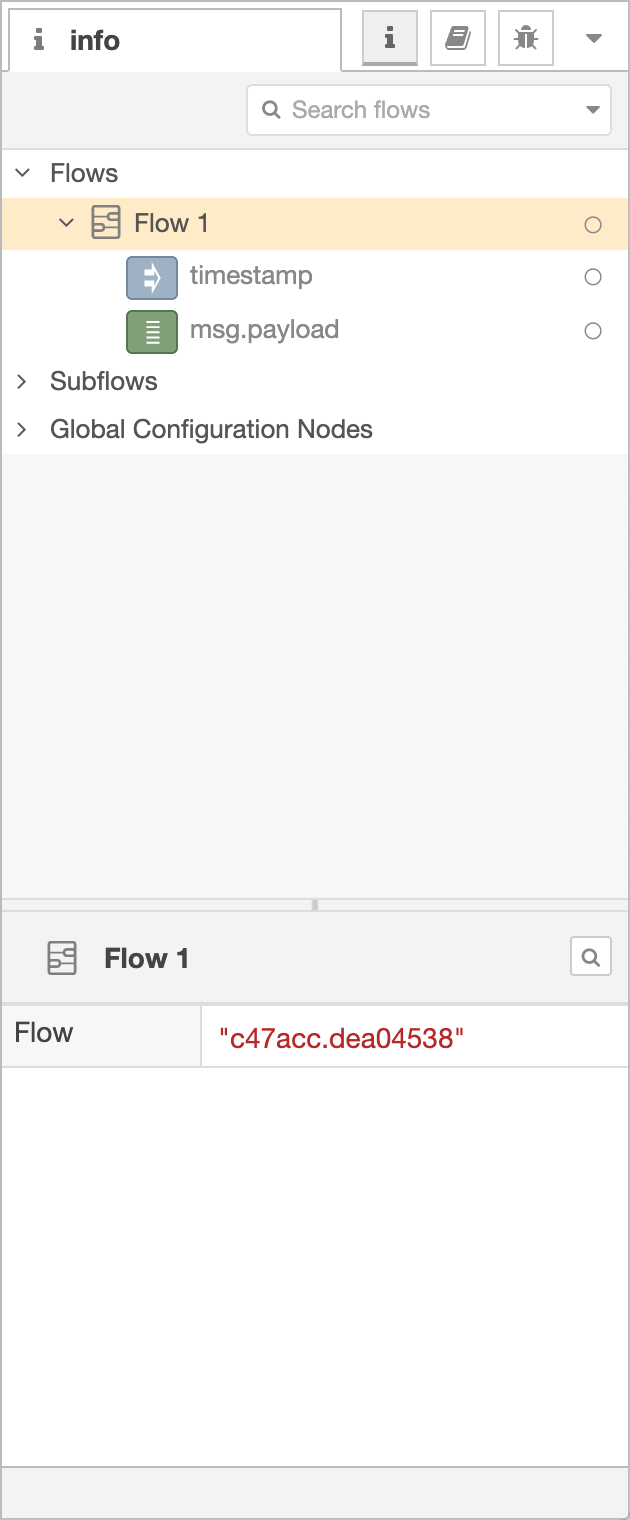
Information Sidebar
To edit a flow’s properties, double-click on its tab in the top bar. This will open the Flow Properties dialog.
- : Properties - set the flow's name and description. The description can use Markdown syntax for formatting and will appear in the Information sidebar.
- : Environment Variables - properties that are exposed as environment variables within the flow. Since CyberFlow 2.1
| Reference | |
|---|---|
| Key shortcut | none |
| Menu option | Flows -> Rename |
| Action | core:edit-flow |
Enabling or disabling a flow
The flow can be enabled or disabled using the toggle button at the bottom of the dialog. If a flow is disabled, none of the nodes it contains will be created when the flow is deployed.
The button in the Information sidebar can also be used to enable or disable the node/flow.
| Reference | |
|---|---|
| Key shortcut | none |
| Menu option | none |
| Action | core:enable-flow |
| Reference | |
|---|---|
| Key shortcut | none |
| Menu option | none |
| Action | core:disable-flow |
Hiding or showing a flow
A flow can be hidden by right-clicking on it and selecting ‘hide flow’ in the context menu. The option can also be found in the tab bar drop-down menu.
When hidden, the Information sidebar will show an icon next to it. Clicking that icon will show the flow again.
| Reference | |
|---|---|
| Key shortcut | Alt-w |
| Menu option | [Tab Menu] Hide flow |
| Action | core:hide-flow |
| Reference | |
|---|---|
| Key shortcut | Alt-Shift-w |
| Menu option | [Tab Menu] Show last hidden flow |
| Action | core:show-last-hidden-flow |
| Reference | |
|---|---|
| Key shortcut | none |
| Menu option | [Tab Menu] Hide other flows |
| Action | core:hide-other-flows |
| Reference | |
|---|---|
| Key shortcut | none |
| Menu option | [Tab Menu] Hide all flows |
| Action | core:hide-all-flows |
| Reference | |
|---|---|
| Key shortcut | none |
| Menu option | [Tab Menu] Show all flows |
| Action | core:show-all-flows |
Locking a flow
Flows can be locked to prevent any changes being made to them.
To lock/unlock a flow, you can:
- Right-click on its tab and select the ‘lock flow’ option
- Toggle the lock button in the bottom corner of the Flow Properties dialog
- Click the padlock icon in the Information Sidebar when hovering over the flow
| Reference | |
|---|---|
| Key shortcut | none |
| Menu option | [Tab Menu] Lock Flow |
| Action | core:lock-flow |
| Reference | |
|---|---|
| Key shortcut | none |
| Menu option | [Tab Menu] Unlock Flow |
| Action | core:unlock-flow |
Deleting a flow
To delete a flow, click the ‘Delete’ button in the Flow Properties dialog.
| Reference | |
|---|---|
| Key shortcut | none |
| Menu option | Flows -> Delete |
| Action | core:remove-flow |
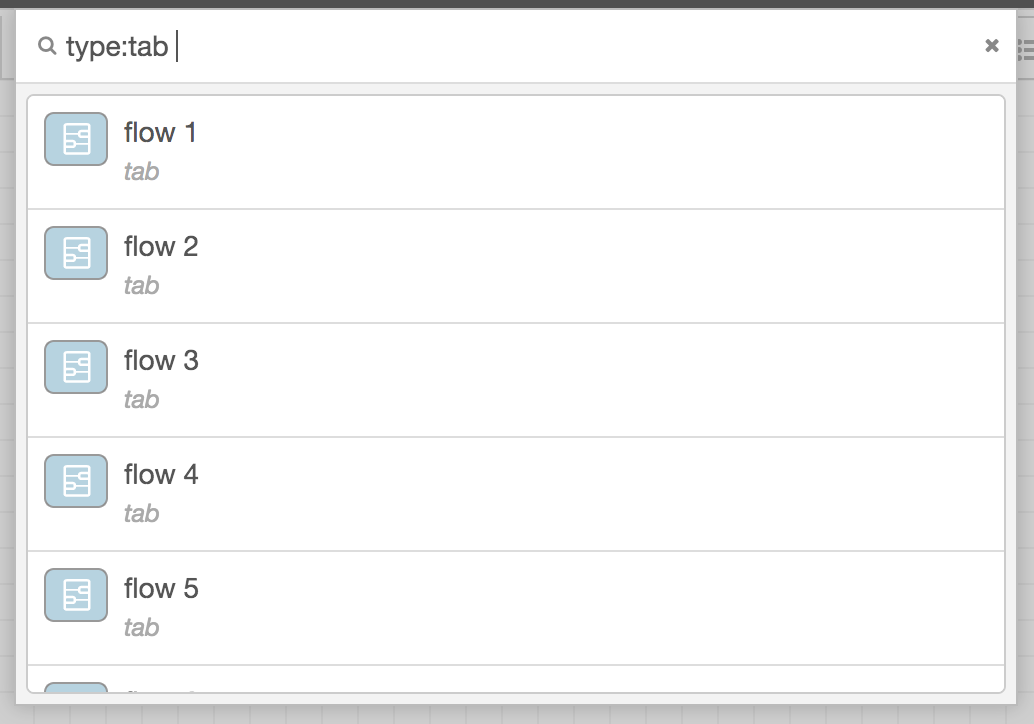
Search flows
Switching between flows
To open a list of the available flows, click the menu button in the top bar. Then select the List Flows option.
| Reference | |
|---|---|
| Key shortcut | Ctrl/⌘-Shift-f |
| Menu option | none |
| Action | core:list-flows |
| Reference | |
|---|---|
| Key shortcut | Ctrl/⌘-[ |
| Menu option | none |
| Action | core:show-previous-tab |
| Reference | |
|---|---|
| Key shortcut | Ctrl/⌘-] |
| Menu option | none |
| Action | core:show-next-tab |
Video walkthrough placeholder
Add an embedded walkthrough for this section by inserting an <iframe> or <video> element and applying the is-visible class to this container.