CyberFlow
Groups
Nodes can be joined together to form a group. They can then be moved or copied as a single object within the editor.
Since CyberFlow 1.1.0
Groups can be given a border and background colour, as well as an optional label.
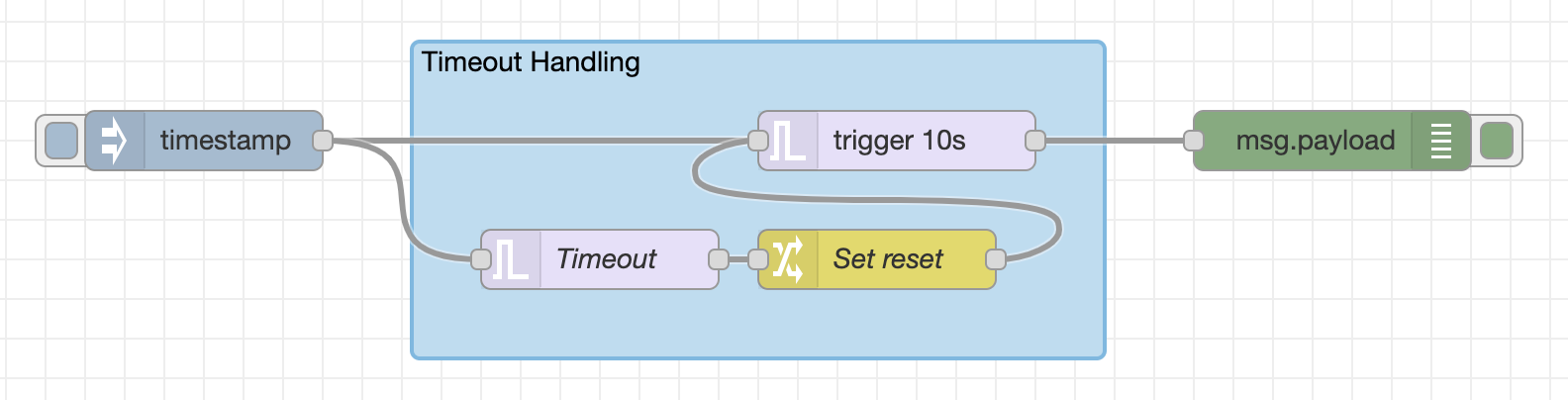
Groups
Creating a group
To create a group, select the nodes and then select the ‘Groups -> Group selection’ option in the menu.
| Reference | |
|---|---|
| Key shortcut | Ctrl/⌘-Shift-g |
| Menu option | Groups -> Group selection |
| Action | core:group-selection |
Editing group properties
A groups’s properties can be edited by double clicking on the group, or pressing
Enter when the workspace has focus and the group is selected.
The edit dialog contains two tabs:
- : Properties - the groups properties to edit.
- : Environment Variables - properties that are exposed as environment variables within the group. Since CyberFlow 2.1
- : Description - per-node documentation formatted using Markdown. This is displayed in the Information sidebar when the group is selected.
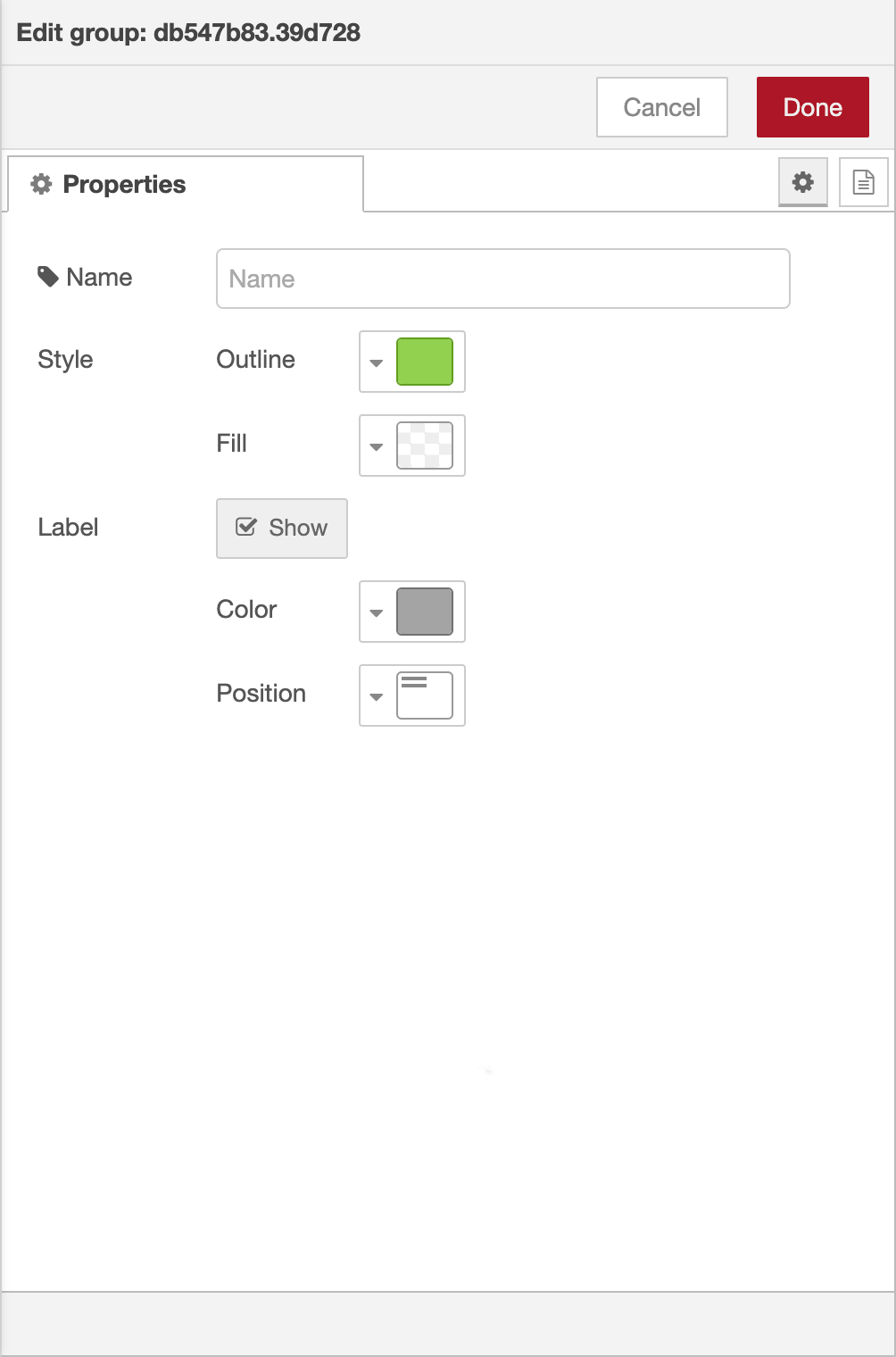
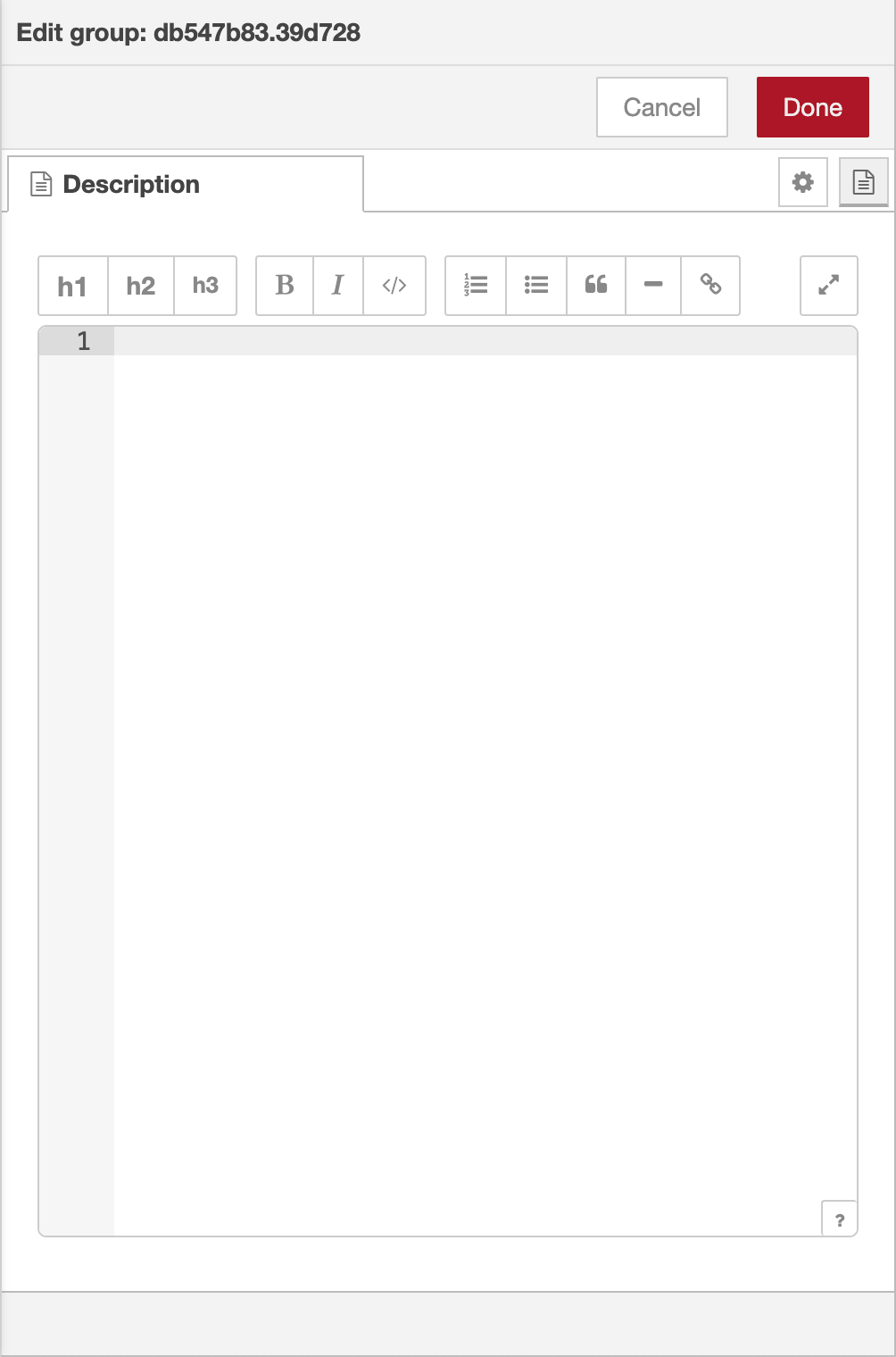
Group edit dialog - properties and description tabs
The Group properties tab provides options to:
- set the outline and fill colours of the group
- select whether the name of the group should be shown as a label, and if so, what colour text to use and where the label should be placed.
Reusing a group’s style
| Reference | |
|---|---|
| Key shortcut | Ctrl/⌘-Shift-c |
| Action | core:copy-group-style |
| Reference | |
|---|---|
| Key shortcut | Ctrl/⌘-Shift-v |
| Action | core:paste-group-style |
To copy an existing group’s style (outline, fill, color and label position), select
the group, then press Ctrl/⌘-Shift-c.
To apply that style to another group, select the group and press Ctrl/⌘-Shift-v.
Adding nodes to a group
Nodes can be added to an existing group by dragging them into the group. Before CyberFlow 3.1, this could only be done one node at a time. Since CyberFlow 3.1, a whole selection of nodes/groups can be dragged into a group in one go.
Removing from a group
To remove a node from a group, select the node then select the ‘Groups -> Remove from group’ option in the menu.
Since CyberFlow 3.1 you can press and hold the Alt key when dragging a selection and it will be
removed from the parent group.
| Reference | |
|---|---|
| Key shortcut | none |
| Menu option | Groups -> Remove from group |
| Action | core:remove-selection-from-group |
Merging nodes/groups
It is possible to merge the current selection to form a single group. Select all of the groups and nodes to merge into a single group. Then select the ‘Groups -> Merge selection’ option in the menu.
| Reference | |
|---|---|
| Key shortcut | none |
| Menu option | Groups -> Merge selection |
| Action | core:merge-selection-to-group |
Ungrouping
To ungroup nodes, select the group and then select the ‘Groups -> Ungroup selection’ option in the menu.
| Reference | |
|---|---|
| Key shortcut | Ctrl/⌘-Shift-u |
| Menu option | Groups -> Ungroup selection |
| Action | core:ungroup-selection |
Video walkthrough placeholder
Add an embedded walkthrough for this section by inserting an <iframe> or <video> element and applying the is-visible class to this container.